Working in an editor
The playground is a fine place to sketch: nothing to install, a slider for every param, a picture that redraws as you type. A font, though, soon outgrows a single buffer. It becomes a handful of files that import a shared foundation, kept in version control and edited in your own editor. Ductus follows you there. Its language server, ductus lsp, checks your code as you type, tells you what names mean and what they evaluate to, and serves a page that draws the glyph under your cursor while you write it.
This chapter sets that up with Neovim and then walks through the loop it gives you.
Setting up
Install the ductus binary from the repository; the language server is one of its commands:
cargo install --path crates/ductus-cli
Neovim 0.11 or later starts it for .ductus files with a few lines in init.lua:
vim.filetype.add({ extension = { ductus = "ductus" } })

vim.lsp.config("ductus", {
  cmd = { "ductus", "lsp" },
  filetypes = { "ductus" },
  root_markers = { ".git" },
})
vim.lsp.enable("ductus")

-- Comments are `#` to the end of the line; `gc` needs to know.
vim.api.nvim_create_autocmd("FileType", {
  pattern = "ductus",
  callback = function() vim.bo.commentstring = "# %s" end,
})
The last few lines are for Neovim rather than the language server: gc comments lines out with the buffer’s commentstring, which Neovim leaves empty for a language it doesn’t know. That is enough for everything in this chapter except the preview, which needs two more pieces: a :DuctusPreview command, and an autocmd that tells the server where your cursor is, since the protocol has no standard message for that. Both are about twenty lines; the ductus-lsp README has them, along with inlay hints and completion as you type. Any other editor that speaks the Language Server Protocol can run ductus lsp too; only the preview’s cursor-following needs that one editor-side addition.
Two windows
Open a glyph file, put the cursor in a glyph, and run :DuctusPreview. A page opens at http://127.0.0.1:45974/ (45974 spells “glyph” on a phone keypad). Put it on a second screen, or beside the editor, and leave it there.
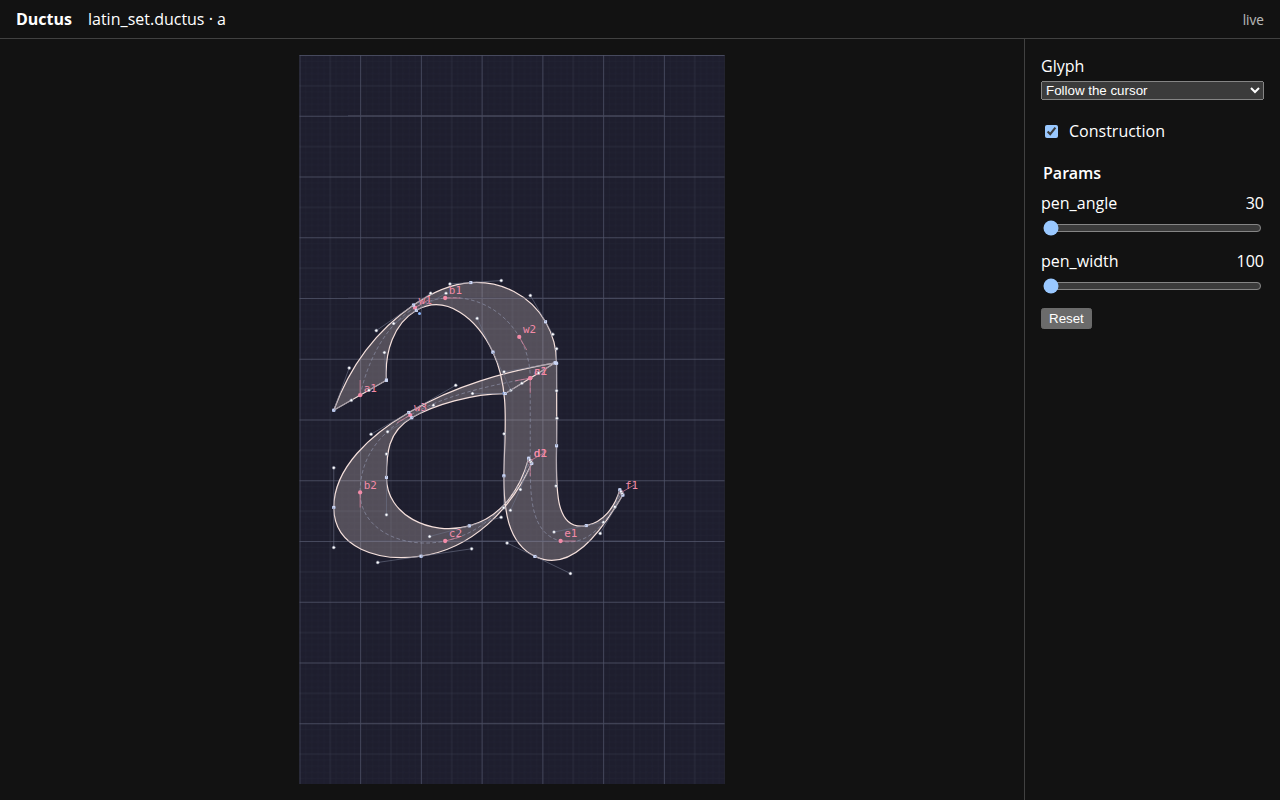
From then on the page follows you:
- It shows the glyph you are in. Move the cursor from
glyph aintoglyph b, and the page switches tob. Move into params, adef, or a file you import, and it keeps the glyph you were looking at, so you can tune a shared macro and watch one of the glyphs that uses it redraw. - It redraws as you type, from the unsaved buffer; there is nothing to save or rebuild. Each change is evaluated and drawn in a few milliseconds.
- It draws the construction: nodes with their names, the pen’s extent at each, skeleton guides, fitted handles and anchors. This is the debug view of the next chapter, always at hand. Untick Construction to see the ink alone.
- It keeps the last good picture through a mistake. Half-typed code, an undefined name, a contour left open: the page dims the last rendering and shows the error with its line above it, and brightens again once the code is whole.
- Its sliders move through the design space. There is one for each param, within its declared range. They change what the page draws and nothing else: the file keeps its defaults, and so do the values the editor shows you. It is the quick way to see whether a construction holds at the corners before you check them properly with
ductus inspect --set.
The selector at the top of the panel pins one glyph in place, or shows all of them side by side, when following the cursor is not what you want.
What the editor knows
While the page shows what your code draws, the editor tells you what it says.
Errors as you type. Every syntax error is underlined as soon as you make it, and once the syntax is whole, the first evaluation error is too: a name used before it is bound, a name bound twice in one scope, a contour that doesn’t close, a point where a number belongs.
Values where they are computed. Hover over a name to see its declaration and its value for the default params. Turn on inlay hints and every computed number shows its value at the end of its line:
stem = 40 + 0.14 * weight;  ▸ 96
hair = 0.85 * stem;  ▸ 81.6
This is the probe binding from the next chapter without the round trip through ductus inspect: write waist = distance(…); in a glyph and its value appears beside it. Numbers, params and metrics have values, and so do a glyph’s nodes (position, direction and width), contours and guides (point counts) and anchors. Points, pens and other paths show their declaration only, for now.
Finding your way. Go to definition follows a name to where it is bound, including into an imported file, and on an import line it opens the file. Find references lists every use of a binding across your project. The document outline lists params, metrics, defs and glyphs, with each glyph’s contours, guides, nodes and anchors beneath it, and a workspace symbol search finds params, metrics, defs, glyphs and top-level bindings in any file of the project.
Writing. Completion offers what fits where you are: contour, guide and anchor at the start of a statement in a glyph; names in scope, functions and the direction constants inside an expression; pos, left, tip and the other node fields after n.. Calls complete with a placeholder per argument. Inside a call, signature help shows the parameters, the current one highlighted, along with the function’s description. For your own defs, the description is the comment directly above it. Formatting is ductus format, so it can run on every save.
Renaming safely. Rename changes a binding and every use of it, in every file. In a language where bindings never change and inner scopes may reuse outer names, a rename can quietly change what some other line means. Rename a glyph’s local w to stem, and a later advance = stem; in that glyph would stop reading the top-level stem. The server checks for this, and for names bound twice in one scope, and refuses the rename with the line it would change.
Where the playground fits
The two complement each other. The playground needs nothing installed and is the place to try an idea or share a snippet; it cannot follow imports, since a browser has no filesystem. The editor is where a font gets built: many files, imports, version control, and the same picture, redrawn as you type.